
It’s time to get serious about ai.
Build Your Own AI Bidding Tool and Landing Page in 1 Weekend
PART TWO
NotebookLM is the tool we use to gather information from our own sources, sources on the web, and audio-visual sources that we can find.
Create a Notebook, and give it a title. We will fill that notebook with information we need, designs we like, text and ideas we are interested in, and then use it and Gemini to develop the assets and tools we need.
Open a NotebookLM Account: Free is fine.
Meeting Review
Quick recap
The meeting focused on developing a bid generation tool using Claude AI. Don led the group through creating a comprehensive form with various fields for studio information, client details, and project specifics. The team discussed design elements including fonts, colors, and layout preferences. They worked through the process of generating HTML files from Claude that could be used as bid templates. Several participants encountered issues with API keys and formatting, which Don helped troubleshoot. The group discussed various features like collapsible panels, live math calculations, and output formats for the generated bids. By the end of the session, participants had successfully generated their bid sheets and were instructed to continue filling them out as practice.
Next steps
Don
Luciana
Collaboration
- All participants: Prepare 4-5 images (header image and 3-4 card images) for tomorrow’s landing page exercise, sized to 1400px wide for header and 800px wide for cards, named as “header”, “card1”, “card2”, “card3”, “CTA”
- All participants: Review uploaded Zoom videos from tonight’s session (to be uploaded by Don within 2-3 hours)
- All participants: If bid sheet tool needs modifications (e.g. adding copy text button, fixing API key issues, adding dropdowns), go back to Claude and request specific fixes
- All participants: Be ready for tomorrow’s session at 1 PM Pacific (note time change from original noon start)
- All participants: If bid sheet tool is not saving rates correctly, go back to Claude to fix saving functionality
- All participants: Save the Claude prompt details for future tool creation
- All participants: Bring 2 sets of landing page images if possible for extra practice
Summary
Photography Pricing Structure Updates
The team discussed updates to their pricing structure for photography services. Don shared a Chrome extension for capturing website design elements and mentioned he would demonstrate using Google’s Stitch tool later. The group reviewed and refined their pricing document, adding new fee categories including hourly rates, library shoot rates (with multipliers from 1.5x to 3x the daily rate), and custom fees. They also discussed the need to include sales tax/VAT and retouching rates in their standard pricing structure. The team agreed to update the Word document with these new fee categories for future use.
New Bid Generation System Demo
Don demonstrated a new bid generation system with conditional fields and pricing options, showing how it can automatically generate professional-looking proposals with customizable parameters. The system allows for editing and re-running bids without starting from scratch, and generates text files that can be saved and shared with clients. Don clarified that insurance costs are not typically factored into project pricing, and walked through filling out details for a sample project including crew rates and deliverables.
Bid Template System Development
The team discussed creating a bid template system, with Don demonstrating how to input various costs and settings. They identified several issues including the need to turn on certain buttons in the system and correct pricing errors, particularly with the photography day rate which was incorrectly set at $1,200 instead of $2,000. The team also discussed how to price stop motion work, deciding to use a per-finished-minute rate with custom pricing options, though they noted the wide range in industry pricing from $1,500 to $10,000 per finished minute depending on complexity. Don agreed to copy the completed template to a web page for the team to review and potentially reorganize the categories as needed.
Form Design Typography Discussion
Don led a discussion on creating a design file for a form, focusing on typography and font selection. He demonstrated using Google Fonts and ChatGPT to find suitable font pairings, ultimately settling on Bodoni Moda for headlines and Inter for body text. The team encountered some technical difficulties with uploading updates to the form document, which Don addressed by attempting to refresh and reupload the content.
Web Page Design Specifications
The team discussed design choices for a web page, including fonts, colors, and layout specifications. They decided on Playfair Display for headlines, Inter for body text, and specific color choices including wheat for background, olive for headlines, dark gray for body text, and rust for accents and buttons. The team agreed on a container width of 1200 pixels and set headline font size at 48 points, with body text at 12 points. They determined the answer panel should be placed on the side rather than at the bottom for better user experience. The conversation ended with instructions to open Claude and continue implementing the design specifications in a new chat session.
Claude API Bid Sheet Tool
Don led a discussion on creating a bid sheet tool using the Claude API, outlining the desired fields and functionality. The team worked through copying the necessary text and form fields from a shared document into Claude’s chat interface, with Don providing instructions on what content to include and exclude. The team encountered formatting issues when copying text between platforms, but managed to successfully input the required information into Claude’s interface.
Custom Fields Implementation Discussion
The team discussed implementing custom fields and Next Steps functionality, with Laura leading the process of copying and formatting information. They encountered some formatting issues when copying text, but were able to resolve them through text messaging. The group then answered a series of questions from the AI tool about preferences for HTML formatting, data storage, and calculation features. Don confirmed that they wanted HTML files for both clipboard copying and standalone viewing, local storage for persistent data, and live calculations handled by Claude rather than manual totals. The team also discussed how to handle bid timing and library shoot rates, with Don indicating that these should be flexible based on job type requirements.
Design Tool Configuration in Claude
The team discussed completing a design tool configuration in Claude, addressing questions about API key storage, bid output format, and design elements. Don clarified that the API key should be filled once in local storage, the generated bid should be downloadable HTML, and the copy button output should be plain structured text rather than richly formatted text. The team worked through technical details about formatting answers and confirmed that no welcome section or bid history log would be included, with only a copy button functionality.
Claude Bid Sheet Tool Setup
The team discussed setting up and testing a bid sheet tool generated using Claude. They addressed issues such as missing labels in input fields, the placement of studio settings in a collapsible panel, and the process of entering API keys. Don clarified that the API key should be entered manually and explained its function in connecting to Claude. The team also discussed the tool’s responsiveness and customization options, with Don demonstrating how to adjust the layout and save settings. Some members, including Luciana and Mike, encountered challenges with accessing or saving their API keys, but Don provided guidance to resolve these issues.
Form System Rate Saving Issues
The team discussed issues with a new form system that wasn’t properly saving rate information between sessions. Don explained that the system uses API keys to connect with Claude for document generation, and demonstrated how to access and copy API keys from the Studio settings. The team identified that the form wasn’t persistently saving rate information, with Laura and Debra both experiencing this issue. Don instructed the team to report the error to Claude, providing the error code, which would generate a new HTML file to fix the problem.
Studio Settings and API Issues
The team discussed issues with saving studio settings and API keys in a new system. Don provided guidance on troubleshooting, suggesting users relaunch the page and download a fresh version when encountering problems. Several participants, including Laura and Luciana, experienced difficulties with saving rates and API keys due to potential cache issues and password management conflicts on their Macs. Don advised using plain language to report specific issues to the system for fixes, and emphasized making all necessary changes at once rather than making one change at a time.
Claude Bid Sheet System Issues
The team discussed issues with saving rates in a bid sheet system using Claude. Don guided Laura through the correct process of saving the bid sheet to the desktop rather than within the Claude interface. The team learned that Claude’s token limits had been doubled and the 5-hour daily limit had been removed. Several team members, including Trish and Luciana, experienced API key errors, which Don advised to resolve by asking Claude directly to fix the issues using plain English descriptions of the problems. Don emphasized that when encountering errors, users should communicate with Claude to get specific guidance rather than attempting manual fixes.
Bid Form Tool Access Issues
The team discussed issues with accessing and using a bid form tool. Don and Laura provided guidance on how to properly open the HTML file in a browser by dragging it instead of double-clicking, and explained the need to save information in the downloaded file rather than the cloud version. The group worked through various technical challenges, with Trish successfully getting her version to work and Mike confirming functional success while working on styling. Don explained the difference between the fillable form interface and the downloaded HTML output, noting that a “copy text” file would be needed to create a web page version for deployment.
New Bidding Tool Implementation Discussion
The team discussed implementing a new bidding tool in Claude, with Don providing guidance on creating dropdown menus and saving studio settings. Luciana encountered technical issues with saving drafts but was able to generate a basic bid after receiving help. The group agreed to meet the next day at 1 PM Pacific time to work on creating landing pages, with participants needing to prepare specific image files in advance. Don emphasized that the tool would continue to improve with practice and suggested saving the current setup to reuse for future projects.
Code Below as plain text
OUR FORM
My Information
My Studio
Address.
Website.
Email:
Phone Number
Date:
Bid Time (30 days)
Base Rate (add to any bid that is not half or full day)
Day rate
Hourly Rate
Library Shoot Rate (%) 1x, 1.5x, 2x, 2.5x, 3x or custom)
Library Shoot Per Image:
License Fee Advertising
License Fee Editorial
Sales Tax % / VAT Tax %
Retouching: $xxx per hour / per image
Motion Pricing: $XX per finished minute / custom
API KEY
Enter Once and store on page
Make Editable.
Custom Fields
Client name
Client Address
Client phone number
Client Email
Project Name
Project ID:
Shoot Fee: X days at day rate / ½ day rate / custom fee field
Library Shoot yes/no radio (variable wheel)
Usage Fee: advertising / editorial / custom / other (field
Sales (or VAT) taxes
Subject
Treatment
Tabletop/Food/Beverage/Product/Lifestyle/Location/E-Commerce (checkmarks)
Number of images?
Styled Set / On White / Location
Stylist 1
Stylist 2
Assistant(s)
Digitech
Deliverables
Usage: Web/Print/Mix/Other
License Fee: Per Image, Advertising / per image editorial / custom (field: number and field for explanation
Time Frame: Immediate/In Planning
Proposed start date
Pre-Production
Moodboard Yes / No (price if yes)
Rental Equipment
Rental Space
Craft Services
Scouting ($x per ½ day)
Location Fees
Permits
Mileage: 25 miles free: Over 25 miles .75
Insurance Liability
Insurance Product
Travel Fees
Talent:
Models total
MUA
Wardrobe
Motion
Length
Stop Motion / Video / Cinemagraph
Audio:
Music Licensed (fee)
Music Royalty Free (Research Fee)
Post Production
Included: Straightening, color correction, sharpening.
Retouching Fee x-hours / x images / custom fee
Additional Notes: Field
Next Steps: Field
OUR FORM
My Information
My Studio
Address.
Website.
Email:
Phone Number
Date:
Bid Time (xx days)
Base Rate (add to any bid that is not half or full day)
Day rate
Hourly Rate
Library Shoot Rate (%) 1x, 1.5x, 2x, 2.5x, 3x or custom)
Library Shoot Per Image:
License Fee Advertising
License Fee Editorial
Sales Tax % / VAT Tax %
Retouching: $xxx per hour / per image
Motion Pricing: $XX per finished minute / custom
API KEY
Enter Once and store on page
Make Editable.
Custom Fields
Client name
Client Address
Client phone number
Client Email
Project Name
Project ID:
Shoot Fee: X days at day rate / ½ day rate / custom fee field
Library Shoot yes/no radio (variable wheel)
Usage Fee: advertising / editorial / custom / other (field
Sales (or VAT) taxes
Subject
Treatment
Tabletop/Food/Beverage/Product/Lifestyle/Location/E-Commerce (checkmarks)
Number of images?
Styled Set / On White / Location
Stylist 1
Stylist 2
Assistant(s)
Digitech
Deliverables
Usage: Web/Print/Mix/Other
License Fee: Per Image, Advertising / per image editorial / custom (field: number and field for explanation
Time Frame: Immediate/In Planning
Proposed start date
Pre-Production
Moodboard Yes / No (price if yes)
Rental Equipment
Rental Space
Craft Services
Scouting ($x per ½ day)
Location Fees
Permits
Mileage: 25 miles free: Over 25 miles .75
Insurance Liability
Insurance Product
Travel Fees
Talent:
Models total
MUA
Wardrobe
Motion
Length
Stop Motion / Video / Cinemagraph
Audio:
Music Licensed (fee)
Music Royalty Free (Research Fee)
Post Production
Included: Straightening, color correction, sharpening.
Retouching Fee x-hours / x images / custom fee
Additional Notes: Field
Next Steps
________________
Headline Font: Playfair Display 48 point
Body font. Inter. 12 point.
Background Color: Wheat
Headline color: Olive
Body type: color dark gray.
Accent Color: Rust or burnt sienna.
Border color: rust.
Main container, 1600 pixels
Bullets: rust
Create a welcome section at the top of the bid. Use my .md file for tone and style.
(We will remind Claude add this code to the fetch file.
‘anthropic-dangerous-direct-browser-access’: ‘true’
NOTEBOOK LM – THE BRAINS BEHIND THE OUTFIT
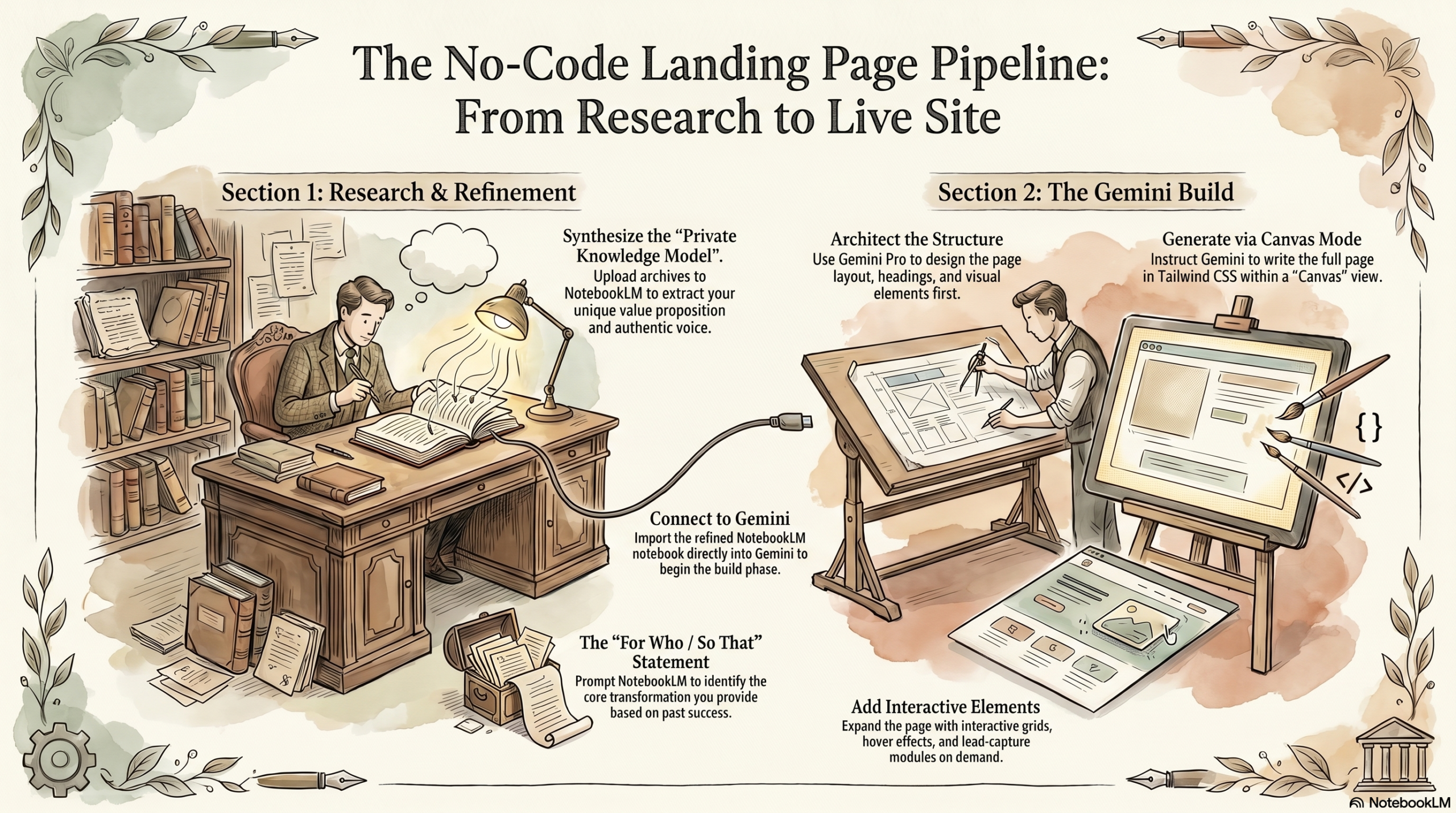
The Power of NotebookLM
The infographic, audio podcast, and video on the left were all created by NotebookLM. These are tools that can help your business in myriad ways. Here is a slide-deck created by NotebookLM. Imagine what you can do with all of this technology at your fingertips.
Photographers can build a private knowledge model from their archives using NotebookLM to transform decades of past work and scattered notes into a highly searchable, conversational interface.
- Upload Archival Materials: Instead of manually digging through old folders, photographers can upload their past project journals, shot lists, location notes, and photos directly into the tool.
- Query the Data Instantly: Once the archive is uploaded, NotebookLM acts as a conversational interface for their entire career, allowing them to instantly query their documents and turn a mountain of data into streamlined business assets.
- xtract Technical and Creative Insights: Photographers can ask the model specific questions about past shoots, such as “What lighting setup did I use for that tabletop shoot in 2018?” or ask for broader creative analyses like “Summarize my recurring themes in environmental portraiture.
Ultimately, this workflow allows photographers to extract deep meaning from complex data without the manual heavy lifting, moving their archives from basic organization to actionable insight.
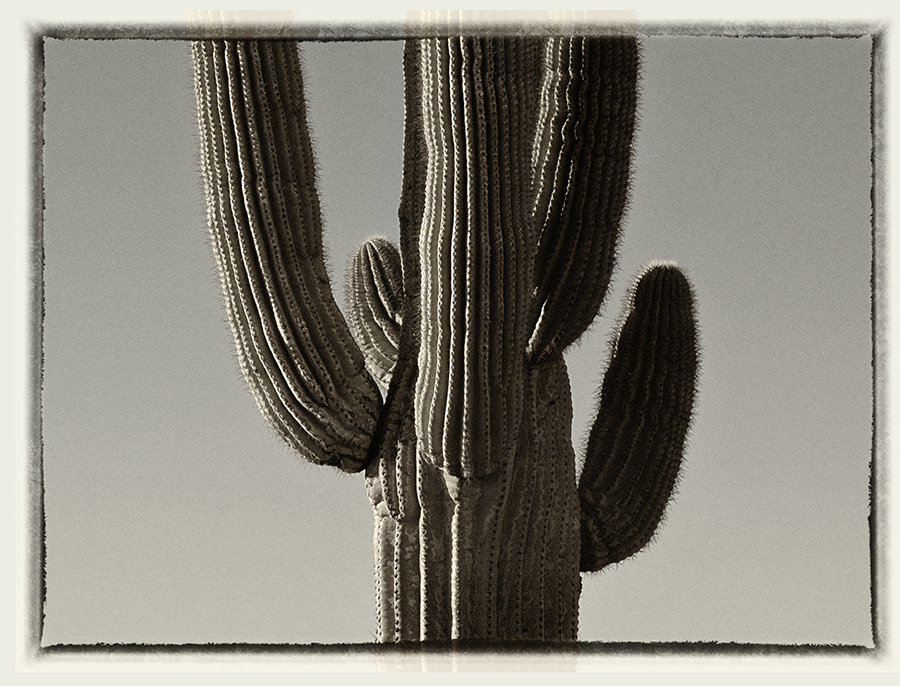
Visual Analysis
Visual Analysis of Saguaro Cactus Morphology
The provided source material, a detailed monochrome photograph entitled “saguaro-trunk.jpg,” offers a specialized visual study of the structural and surface characteristics of a saguaro cactus. The document identifies three primary areas of interest: the complex vertical ribbing of the main trunk and its appendages, the patterns of branching and arm development, and the dense distribution of protective spines. The imagery emphasizes the cactus’s physical adaptations for stability and environmental resilience through its unique pleated geometry and upward-reaching growth habit.
Structural Morphology and Surface Texture
The analysis of the cactus’s trunk and arms reveals a highly specialized surface structure designed for structural integrity and environmental adaptation.
- Vertical Ribbing (Pleats): The most prominent feature of the cactus is the deep, vertical ribbing that runs the entire length of the trunk and arms. These accordion-like pleats are uniform in spacing and provide a geometric complexity to the plant’s surface.
- Spine Distribution: Rows of spines or areoles are situated precisely along the outer ridges of each vertical rib. This alignment creates a series of protective barriers that follow the contours of the plant’s growth.
- Tonal Contrast and Form: The high-contrast monochrome format of the source highlights the depth of the furrows between the ribs, emphasizing the three-dimensional volume of the plant.
Branching and Appendage Development
The source context provides a clear view of the branching patterns characteristic of mature saguaro specimens.
- Multi-Armed Structure: The specimen displays a central primary trunk with at least four distinct arms branching outward and upward.
- Growth Orientation: All visible arms exhibit a vertical growth trajectory, paralleling the main trunk after their initial horizontal emergence.
- Appendage Variation:
- Established Arms: The arms on the left and center-left are tall and well-developed, mirroring the thickness and ribbing pattern of the main trunk.
- Secondary Offsets: Smaller, more rounded arms are visible, such as the one on the far right and a smaller bud emerging behind the central column, suggesting different stages of growth and development.
- Joint Integrity: The image captures the “elbows” or joints where the arms attach to the main trunk, showing a seamless transition of the ribbed texture from the primary body to the appendages.
Summary of Visual Observations
The data extracted from “saguaro-trunk.jpg” underscores the following physical attributes of the subject:
| Feature | Observation |
| Symmetry | High degree of vertical symmetry within individual arms and the trunk. |
| Texture | Coarse and linear, defined by parallel ridges and spine clusters. |
| Growth Habit | Vertical and columnar with upward-curving lateral branches. |
| Composition | Centralized mass with multiple auxiliary arms branching at various heights. |
The source emphasizes the saguaro as a study in verticality and texture, focusing on the intricate patterns created by its biological requirement for structural support and protection.
Building a Bidding (or whatever you want to build) Tool
We will explore ways to build a prompt that works by asking Claude, or Gemini what fields you need. We will then use those fields to test the prompt.
Phase 1: Build the Prompt First
Before any code gets written, the prompt has to work perfectly in a straight Claude conversation. This is where most people skip ahead and regret it.
Type out their bidding scenario manually, Claude responds, and you refine the prompt until the output is consistently right.
No code, no tool, just conversation.
The prompt is the engine.
Everything else is just a wrapper around it.
Phase 2: Write the .md Design File
Once the prompt works, they write a Markdown file that tells Claude exactly what to build.
This is the brief. A good .md file covers:
- What the tool does in one clear sentence
- The input fields (what the photographer types in)
- What the output should look like (format, sections, tone)
- Any calculations involved (hourly rate, usage fees, licensing, expenses)
- Design preferences (clean, simple, their colors if they have them)
- Any edge cases or rules (minimum job fee, travel threshold, etc.)
The .md file is what separates a tool that works from a tool that almost works. The more specific it is, the less back-and-forth is needed in the build.
Phase 3: Build the HTML Tool
They hand Claude the .md file and ask it to build a single HTML page with an API call to Claude that runs the prompt they built in Phase 1. The page lives on their desktop, opens in a browser, and never touches a server.
At this point you will need the Claude API (as small a charge as you can get, this is a private file, not for the public.)
Phase 4: Test and Refine
Run real bids through it. Find where it breaks or produces weak output. Fix the prompt first, then update the HTML if needed.
Font Pairings:
Many times we struggle with choosing fonts for a project. This is a prompt for finding font pairings that work.
The Font Pairing & Type Scale Prompt
I am looking for a professional font pairing for [PROJECT TITLE AND DESCRIPTION.
I need a Serif for the primary headings and a Sans-Serif for the body copy and smaller UI elements.
Please provide a pairing that adheres to the following technical and aesthetic requirements:
1. The Type Scale: * Ratio: Use a scale based on the Golden Ratio ($1.618$).
- Hierarchy: I need specific sizing for five levels:
Header, Subhead, Chapter Header, Body Copy, and Descriptions. - Output: Please provide the suggested point sizes (or rem values) for each level based on a 16px/pt body copy base.
2. The Aesthetic & Voice:
-
Heading (Serif): Needs to feel [Insert Mood: e.g., authoritative, cinematic, minimalist, or rugged].
-
Body (Sans-Serif): Needs to be highly legible and [Insert Mood: e.g., clean, functional, or pensive].
3. The Context:
-
Medium: The typeface is for [Insert: e.g., a digital platform, a printed photo book, or a minimalist website].
-
Content Type: The project focuses on [Insert: e.g., long-form philosophical essays, technical photography instruction, or portfolio descriptions].
4. The Deliverables:
-
Identify the two specific fonts.
-
Briefly explain why they work together (the visual “bridge” between them).
-
Provide the 5-level mathematical type scale.”
The Fonts
For a minimalist portfolio that needs to balance the weight of the desert with the precision of a professional gallery, I’ve selected a pairing that prioritizes high-contrast headings and exceptional digital legibility.
1. The Fonts
-
Heading (Serif):
Playfair Display This is a “Transitional” serif with high contrast between thick and thin strokes. It feels authoritative and cinematic—reminiscent of high-end photography monographs. It carries the “weight” of the desert geology without feeling dated.
-
Body (Sans-Serif):
Inter Inter was designed specifically for computer screens. It has a tall x-height (the height of lowercase letters), which makes it incredibly easy to read at smaller sizes. It is the “technical precision” counterpart to the more expressive serif.
Why They Work Together
The “bridge” here is the structural contrast. Playfair Display is tall and dramatic, while Inter is neutral and incredibly stable. By using a very clean sans-serif for the descriptions, you allow the Serif headings to act as “landmarks” on the page, mirroring the way a lone mesa stands out against a flat desert floor.
2. The Golden Ratio Type Scale ($1.618$)
Using a base size of 16px for your body copy, here is your mathematically harmonized hierarchy.
| Level | Size (px) | Size (rem) | Usage |
| Header (H1) | 110px | 6.85rem | Main title/Statement |
| Subhead (H2) | 68px | 4.25rem | Major section breaks |
| Chapter Header (H3) | 42px | 2.63rem | Gallery/Series titles |
| Body Copy | 26px | 1.62rem | Narrative descriptions |
| Small/Caption | 16px | 1.0rem | Technical metadata/Cart |
Note on Scale: Because the Golden Ratio is quite aggressive, I have shifted the scale so that your Body Copy sits at 26px. This provides a luxurious, readable experience for a “light on copy” site. If 26px feels too large for your specific layout, you can “step down” the scale by one level across the board.
3. Implementation in the High Desert Palette
To maintain the “minimalist and authoritative” feel, I recommend the following application of your colors to this typography:
-
Headers (Playfair Display): Use Oxidized Iron (#4A3B34). The high contrast of the font combined with this deep earth tone creates a striking, etched effect.
-
Body Copy (Inter): Use Cold Basalt (#2B2D2F). At 26px, this color provides a sharp, clear reading experience against the Bleached Wheat background.
-
Descriptions/Metadata: Use Sage Shadow (#7D8471). This allows the technical data (shutter speeds, locations) to recede visually, ensuring the narrative remains the priority.
For Mobile
For a mobile experience, the Golden Ratio ($1.618$) can often be “too loud,” with headers that push your images entirely off the screen. To keep that same sense of authority while making it functional for a handheld device, we’ll “anchor” the scale.
We will keep 16px as the base for small metadata, but we will shift the hierarchy so the primary text is the focus, and the headers are impactful but not overwhelming.
The Mobile Golden Ratio Scale (Base: 16px)
| Level | Size (px) | Size (rem) | Mobile Usage |
| Header (H1) | 68px | 4.25rem | Title of the Image/Project |
| Subhead (H2) | 42px | 2.63rem | Gallery Sections |
| Chapter Header (H3) | 26px | 1.62rem | Narrative sub-titles |
| Body Copy | 16px | 1.0rem | Descriptions & Narrative |
| Small/Caption | 10px | 0.63rem | Metadata (Use All-Caps) |
Mobile Design Adjustments for the High Desert Site
-
The “Caption” Hack: For the 10px metadata (like “ISO 100 • 1/500s”), I recommend using Inter in Bold with Letter Spacing (tracking) set to about 0.1em. This mimics the look of technical engravings on a lens barrel and remains legible even at a very small size.
-
Leading (Line Height): For your Body Copy (16px), set your line height to 1.6 ($25.6px$). On a small screen, that extra “air” between lines prevents the text from looking like a dense block of desert scrub; it keeps the minimalist, pensive vibe intact.
-
Touch Targets: Since you mentioned shopping cart details, ensure any “Add to Cart” buttons using Adobe Ember (#C25E3B) are at least 44px tall.
Visual Narrative on Mobile
On a phone, your photography is the hero. By dropping the Body Copy to 16px, you ensure the narrative supports the image rather than competing for the limited vertical space. The 68px Header in Playfair Display will still feel massive and authoritative, but it won’t require three scrolls to get past.
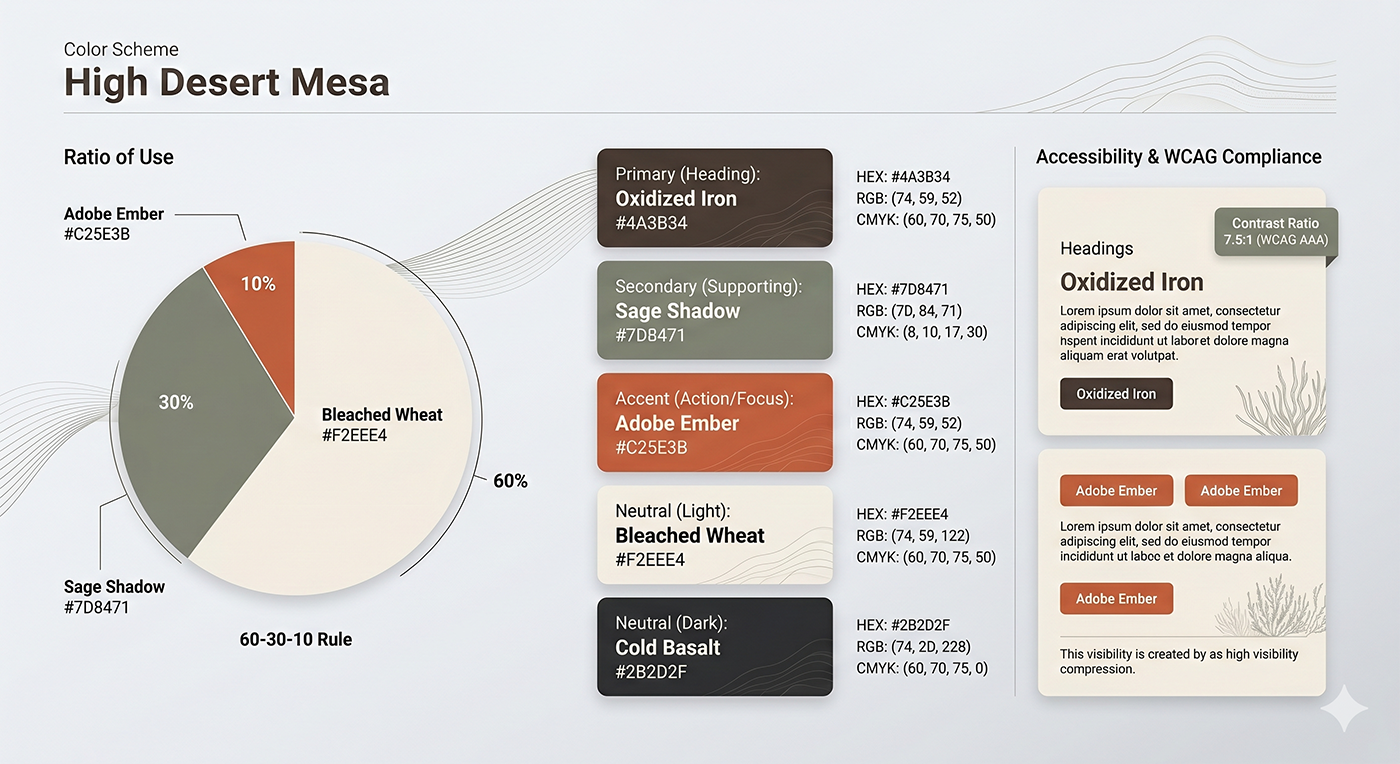
Color Sheme:
The Professional Color Strategy Prompt
“I need a cohesive color palette for a project that values minimalist aesthetics and technical precision. Please design a scheme that includes a primary, secondary, accent, and two neutral tones (one light, one dark).
1. The Atmospheric Intent:
-
The ‘Mood’: The palette should feel [Insert Mood: e.g., pensive and cinematic, rugged and desert-toned, or clinical and high-tech].
-
The Setting: If this palette were a physical environment, it would be [Insert Environment: e.g., a high-end studio with sand-colored walls, a twilight mountain pass, or a minimalist gallery].
2. The Functional Hierarchy:
-
Primary (Heading/Brand): A color with enough weight to carry authority.
-
Secondary (Supporting): A color that provides depth without competing with the primary.
-
Accent (Action/Focus): A high-contrast or ‘pop’ color for specific focal points.
-
Neutrals (Background/Text): A sophisticated dark (near-black) and a nuanced light (off-white/grey) that avoid ‘pure’ digital #000 or #FFF.
3. The Technical Requirements:
-
Provide the HEX, RGB, and CMYK values for each color.
-
Explain the Ratio of Use: Which color should be the dominant ‘60%’, the ‘30%’ secondary, and the ‘10%’ accent?
-
Ensure the contrast ratios between the neutrals and the primary colors meet WCAG accessibility standards for legibility.
4. The Visual Narrative:
-
Briefly explain the ‘why’ behind this selection. How do these colors interact to change the viewer’s perspective or mood?”
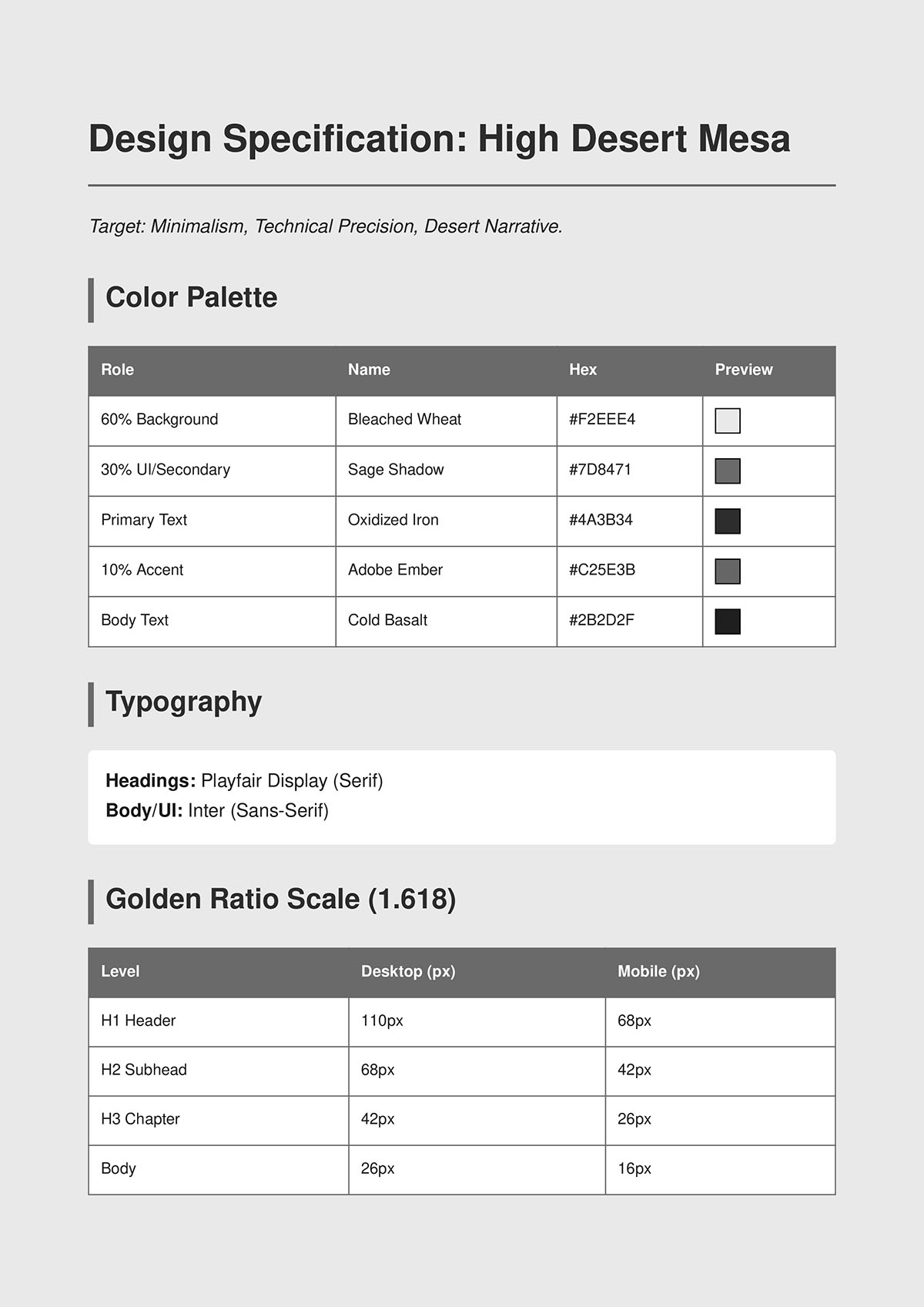
HI PLAYFAIR DISPLAY HEADER) 110px
H2 PLAYFAIR DISPLAY (SBHD) 68px
H3 Playfair Display (Chapter Header) 42px
Body Copy Inter 26px
Small/Caption Inter 16px
We now have good information for building our app, information that 95% of people building these apps with AI do not utillize.
And it looks like this:
# Design System: High Desert Mesa
**Project:** Desert Photography Portfolio & Print Sales Landing Page
**Aesthetic:** Minimalist, Authoritative, Technical Precision

## 1. Color Palette (High Desert Mesa)
*Reflecting the geology and light of the American Southwest (AZ/NM).*

| Role | Name | HEX | RGB | CMYK | Usage |
| :--- | :--- | :--- | :--- | :--- | :--- |
| **Neutral (60%)** | Bleached Wheat | `#F2EEE4` | (242, 238, 228) | (5, 5, 10, 0) | Main Background |
| **Secondary (30%)** | Sage Shadow | `#7D8471` | (125, 132, 113) | (50, 35, 55, 10) | UI Elements/Footers |
| **Primary** | Oxidized Iron | `#4A3B34` | (74, 59, 52) | (60, 70, 75, 50) | Headings/Authority |
| **Accent (10%)** | Adobe Ember | `#C25E3B` | (194, 94, 59) | (15, 75, 85, 5) | Call to Action (Cart) |
| **Dark Neutral** | Cold Basalt | `#2B2D2F` | (43, 45, 47) | (75, 65, 60, 60) | Primary Body Text |

## 2. Typography Pairings
* **Heading (Serif):** **Playfair Display**
  * *Voice:* Cinematic, high-contrast, authoritative.
  * *Usage:* H1, H2, H3.
* **Body (Sans-Serif):** **Inter**
  * *Voice:* Functional, legible, technical.
  * *Usage:* Body copy, UI, Metadata.

## 3. Typographic Scale (Golden Ratio: 1.618)

### Desktop (Base: 16px/1rem)
* **H1 (Header):** 110px / 6.85rem
* **H2 (Subhead):** 68px / 4.25rem
* **H3 (Chapter):** 42px / 2.63rem
* **Body:** 26px / 1.62rem
* **Small/Caption:** 16px / 1.0rem

### Mobile (Base: 16px/1rem)
* **H1 (Header):** 68px / 4.25rem
* **H2 (Subhead):** 42px / 2.63rem
* **H3 (Chapter):** 26px / 1.62rem
* **Body:** 16px / 1.0rem
* **Small/Caption:** 10px / 0.63rem (All-caps, 0.1em tracking)

## 4. UI Implementation Rules
1. **Background:** Always use `Bleached Wheat`. Avoid pure white.
2. **Body Text:** Use `Cold Basalt` for readability. Set `line-height` to 1.6 for pensive spacing.
3. **Action:** Use `Adobe Ember` only for transactional elements (Cart/Purchase).
4. **Metadata:** Use `Sage Shadow` for technical photo data to keep it secondary to the narrative.
Technical Setup Single-file HTML with vanilla JS and CSS. No frameworks, no build steps. Calls the Anthropic API directly from the browser using a hardcoded key placeholder ("paste-your-API-key-here") that gets swapped in locally before deploying. Model: claude-sonnet-4-20250514, max tokens 4000. Add “Framer” like animation where appropriate, but not at the cost of easy maintenance. This file will run on a local device, so the API key will not be displayed on the internet.
UX details: tabbed output, per-section copy buttons, copy and modify buttons at the bottom of results, Modify drops user back to Step 1 with all inputs intact, assumptions surface at the top of results in a gold-tinted box, toggle groups for channel/tone/length/offer type/follow-up depth (Low 3 / Medium 5 / Full 7), optional fields labeled, helper text on trickier inputs. Copy button copies all information to the clipboard to be pasted into a text file.
FOR TOMORROW:
Prepare 4-5 images for your Landing Page.
We will need a header image, and 3-4 images for the page.
We will also need your logo as a .jpg, or a .png.
Keep it at about 400 – 500 pixels
We will generate the copy and the page in Claude.
What will your page be about?
Food? Product? To attract small businesses?
IMPORTANT:
Resize your header image to 1400px on the wide side.
Resize all other photos to 800px on the long side.
Name them:
header.jpg
card-one.jpg
card-two.jpg
card-three.jpg
cta-image.jpg (optionsl)